
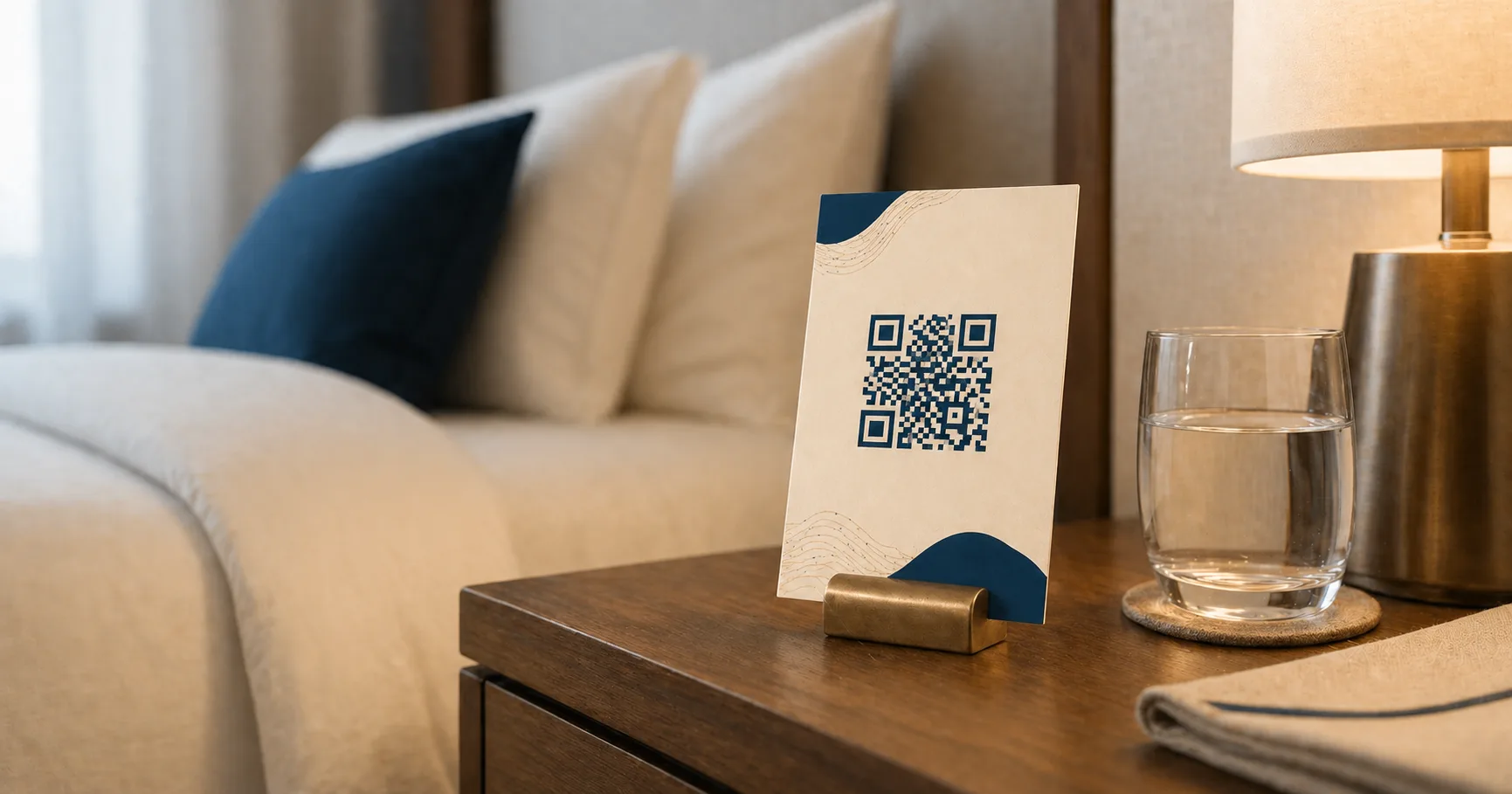
A Wi-Fi QR codeA QR encoding Wi-Fi credentials in the format `WIFI:T:WPA;S:NetworkName;P:password;;`. iOS and modern Android scan it from the camera and prompt to join the network without typing anything. Read more → replaces “let me find the password and you’ll type it character by character” with a single scan and a “Join Network?” prompt. For guest experience, it’s one of the highest-utility QRs you’ll ever ship. For security, it’s a deployment decision that needs more thought than most people give it.
This guide covers the operational patterns that make Wi-Fi QRs reliable, the security model you should be working from, and the troubleshooting checklist for when something goes wrong.
How a Wi-Fi QR code works
A Wi-Fi QR encodes a structured string that the phone’s OS recognizes and acts on:
WIFI:T:WPA;S:MyGuestNetwork;P:my-guest-password;H:false;;When a phone scans this, the camera or scanner app presents a “Join MyGuestNetwork?” prompt. Tap join, and the OS handles authentication. iOS 11+ and Android 10+ both support this natively without third-party apps.
The fields:
T: encryption type.WPA(covers WPA, WPA2, and WPA3),WEP, ornopassfor open networks.S: the SSID, the network name as broadcast.P: the password.H: whether the SSID is hidden.trueif the network doesn’t broadcast its name,false(or omitted) for normal networks.
Special characters in the SSID or password (\, ;, ,, :, ") need to be escaped with a backslash. Most generators handle this for you. The Fast QR Wi-Fi to PNG generator escapes correctly by default; use Wi-Fi to SVG for large-format print.
Always use a guest network
If a Wi-Fi QR ends up in any space a non-employee can see (a lobby, a cafe table, a hotel placard, a window decal), the password is now public. The same way printing the password on a chalkboard would be public. Treat the QR with the same security model.
Three rules follow from this:
- The QR network must be a guest network, isolated from operational systems. Guests should not have layer-2 access to printers, POS terminals, kitchen displays, video cameras, NAS storage, or admin panels. Most modern routers support a “guest network” toggle that handles isolation; for prosumer setups (UniFi, Aruba Instant On, Meraki), configure a separate VLAN.
- Rotate guest credentials on a schedule. Once printed, assume the credentials will eventually circulate beyond your intended audience. Quarterly rotation is a reasonable default for cafes; monthly for higher-traffic venues; per-event for conference spaces.
- Never share your operational network this way. Even at home, run a separate guest SSID for the QR. Your laptop, your file server, and your security cameras shouldn’t be on the same broadcast domain as random scanned phones.
For businesses this is non-negotiable. For homes it’s strongly recommended; almost every router from the last five years supports it.
Placement strategy by venue type
Cafes and restaurants
Place codes near the ordering counter, the entrance, and any seating area where customers settle in to work or wait. Use one consistent SSID across all signs in the venue. Customers will scan, fail, walk to a different table, and try again. They should land on the same network every time.
Pair the QR with a short, friendly call-to-action: “Scan to join Guest Wi-Fi.” The cafe playbook covers the wider customer-experience patterns; the restaurant menu playbook covers the menu-plus-Wi-Fi combination on table tents.
Offices and coworking spaces
Place codes at reception, in meeting rooms, and on the visitor-side of any conference room display. Add a short policy line: “Guest network only. Internal systems require a different network.” This sets the right expectation before a visitor wonders why they can’t reach the office printer.
For larger offices with multiple floors or buildings, separate guest QRs per zone help with both bandwidth management and incident response. If a guest QR’s credentials get widely shared, you can rotate one zone without disrupting the rest. The coworking playbook covers community-space deployment in more depth.
Hotels and events
Hotel guests scan from check-in placards, room key sleeves, room phone cards, and lobby signage. The Wi-Fi QR is often the second thing a guest does after dropping their bag, so reliability matters disproportionately. Build redundancy into the signage. Placard plus key sleeve plus a small in-room insert means a single missing piece of paper doesn’t break onboarding.
For events, credentials usually rotate per event. Print an effective date on the signage so attendees know the QR is current: “Wi-Fi for [Event Name], Apr 15-17.” The hotel playbook covers room-by-room signage, and the event organizer playbook covers conference-scale deployment.
Homes and short-term rentals
Place the code somewhere a guest will encounter it within the first few minutes: inside the front door, on the kitchen counter, on a fridge magnet. Avoid placing it within line of sight of windows or in any photo-friendly Instagram spot, because the QR is the password.
For short-term rentals, treat the Wi-Fi credentials as part of turnover: rotate the password seasonally and reprint the QR. Vacation rental management apps usually support a “Wi-Fi info” field per booking; pair the QR with a small note in the listing’s welcome message.
Clinics and waiting rooms
Healthcare waiting rooms are a strong fit for Wi-Fi QRs because patients often spend 20-40 minutes there, and a smooth onboarding sets the tone. Pair the QR with clear policy text: “Guest network. Do not use for transmitting personal health information.” The clinic playbook covers the broader patient-facing Wi-Fi pattern.
Gyms
Gym Wi-Fi QRs typically live at reception, in changing rooms, and on workout area signage. The gym playbook covers placement around equipment and member-only zones.
Wi-Fi QR code security tips
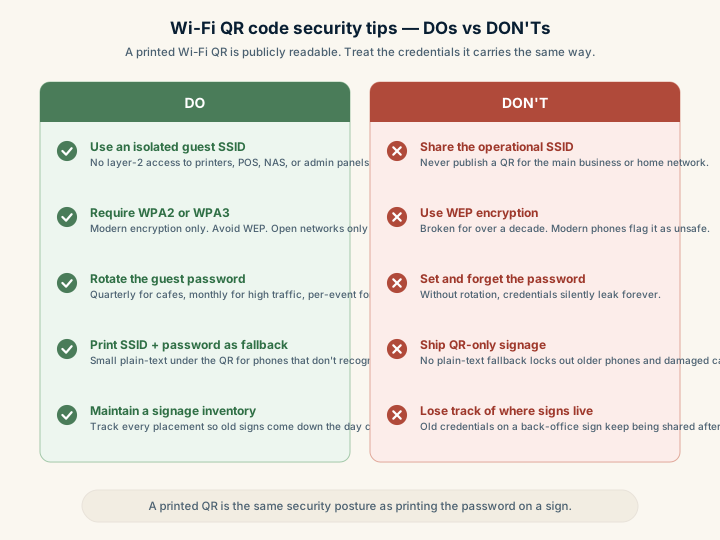
A few baseline security tips keep a publicly displayed Wi-Fi QR from becoming a liability. These are the things to verify before any QR sticker, placard, or table tent goes out the door:
- Isolate guest clients from internal systems. No layer-2 visibility into printers, file shares, admin panels, security cameras, or POS terminals. Most consumer routers do this automatically with the “Guest Network” toggle; verify by attempting to reach an internal IP from a guest-connected device.
- Use modern encryption. WPA2 is the minimum acceptable; WPA3 is preferred. Avoid WEP entirely. It’s been broken for over a decade and modern phones flag it as insecure. Open networks can work for cafes that prefer the simplest possible onboarding, but they trigger “unsecured network” warnings on iOS and Android.
- Apply rate-limiting and bandwidth caps. A guest streaming 4K video shouldn’t degrade the network for everyone else. Most business routers support per-client or aggregate caps on the guest VLAN.
- Block known-bad outbound traffic. Even on a guest network, DNS-level filtering of malware command-and-control domains and phishing infrastructure protects guests as much as it protects you.
- Document who owns the rotation. If the IT lead leaves and no one knows the new guest password, you’ll discover the gap at exactly the wrong moment. Write down the credential rotation schedule and the staff member responsible.
Reducing support tickets with better signage
Wi-Fi QRs that fail in the field usually fail for non-technical reasons. A few signage details that reduce the support load:
- Explicit instructions, like “Open your camera and point at the code, then tap Join.”
- Plain-text fallback. Print the SSID and password in small type below the QR. Some older phones or third-party camera apps don’t recognize the WIFI: scheme, and a fallback gets the user connected anyway.
- A staff contact line. “Trouble connecting? Ask at reception” is better than a frustrated guest giving up.
- Effective date on rotating credentials. For events or quarterly-rotating guest networks, a date prevents staff from wondering whether a sign is still current.
Troubleshooting common failures
Scans, but doesn’t connect
The scan succeeds and the prompt appears, but joining fails. Likely causes:
- Stale saved profile. The phone has the SSID saved with an old password. The fix is to forget the network in Wi-Fi settings, then rescan.
- Captive portal. Some networks present a “click to accept terms” page after joining. The phone connects to the access point but has no internet access until the portal is acknowledged. Add a “complete the welcome page in your browser” line to signage.
- Weak signal at the sign. The QR is in the lobby but the access point is two walls away. The phone joins, then drops. Move the AP or move the sign.
- Password mismatch. The QR was generated against an old password and the network has been rotated. Audit physical signage and reprint.
Some phones scan, others don’t
The QR works for most users but specific phones have trouble:
- Camera app variation. Default iOS Camera and Google’s camera handle the WIFI: scheme natively. Some third-party scanner apps don’t. Suggest the native camera app on signage.
- Print contrast too low. Light-on-light or low-contrast color schemes scan in office light but fail in dim restaurant lighting. Use solid black on white for any guest-facing Wi-Fi QR.
- Glossy lamination glare. Overhead lighting reflects off the lamination and washes out part of the code. Switch to matte lamination or change the angle of the placement.
- Worn or scratched signage. A laminated card on a busy reception desk gets handled hundreds of times; eventually the surface scratches enough to break the QR. Replace damaged signs as part of routine cleaning.
Guests keep joining the wrong network
The QR points at “Guest_VenueName” but customers connect to “VenueName-5G” or a stale SSID with a similar name:
- Simplify SSID naming. Avoid having multiple similar names broadcasting in the same space. If you must broadcast multiple networks, make the guest one obviously different: “GuestWiFi” rather than “VenueName-Guest.”
- Audit old signage. A guest scans an old card from last year, the SSID still exists, the password doesn’t. Pull old signs immediately when credentials rotate.
- Watch for neighbor networks. In dense urban environments, a neighboring business’s Wi-Fi might have a similar name and be broadcasting at higher signal strength. The fix is mostly cosmetic: clearer naming and clearer signage.
Pre-launch checklist
Before printing and deploying Wi-Fi QRs at any scale, verify:
- Guest network exists, is broadcasting, and is isolated from operational systems
- QR has been tested on at least one iPhone and one Android phone
- Print signage includes the SSID and password in plain text as a fallback
- Print signage includes a “scan with your camera” instruction line
- Password rotation schedule is documented and assigned to a specific person
- Inventory of every location where the QR is displayed exists, so signs can be pulled when credentials rotate
- A “trouble connecting?” contact (email, phone, or staff member) is listed
For a broader view of the deployment scenarios, the guest Wi-Fi playbook covers venue-specific patterns. The QR use-cases overview puts Wi-Fi QRs alongside the other common payload types, and the security and safety guide covers the broader QR threat model.
Sources
- Wikipedia — QR code (Wi-Fi network login) — Standard format for Wi-Fi credentials encoded in a QR codeA 2D matrix barcode that encodes data in a square grid of black and white modulesA single black or white square in the QR grid. The number of modules per side scales with the QR versionThe size of a QR code, numbered 1 (21×21 modules) through 40 (177×177). Higher versions store more data but require more printed space. Read more →, from 21×21 modules for version 1 up to 177×177 for version 40. Read more →. Read more →.
- ZXing — Barcode formats reference — Reference encoding format used by Wi-Fi QR codes (
WIFI:T:...).