
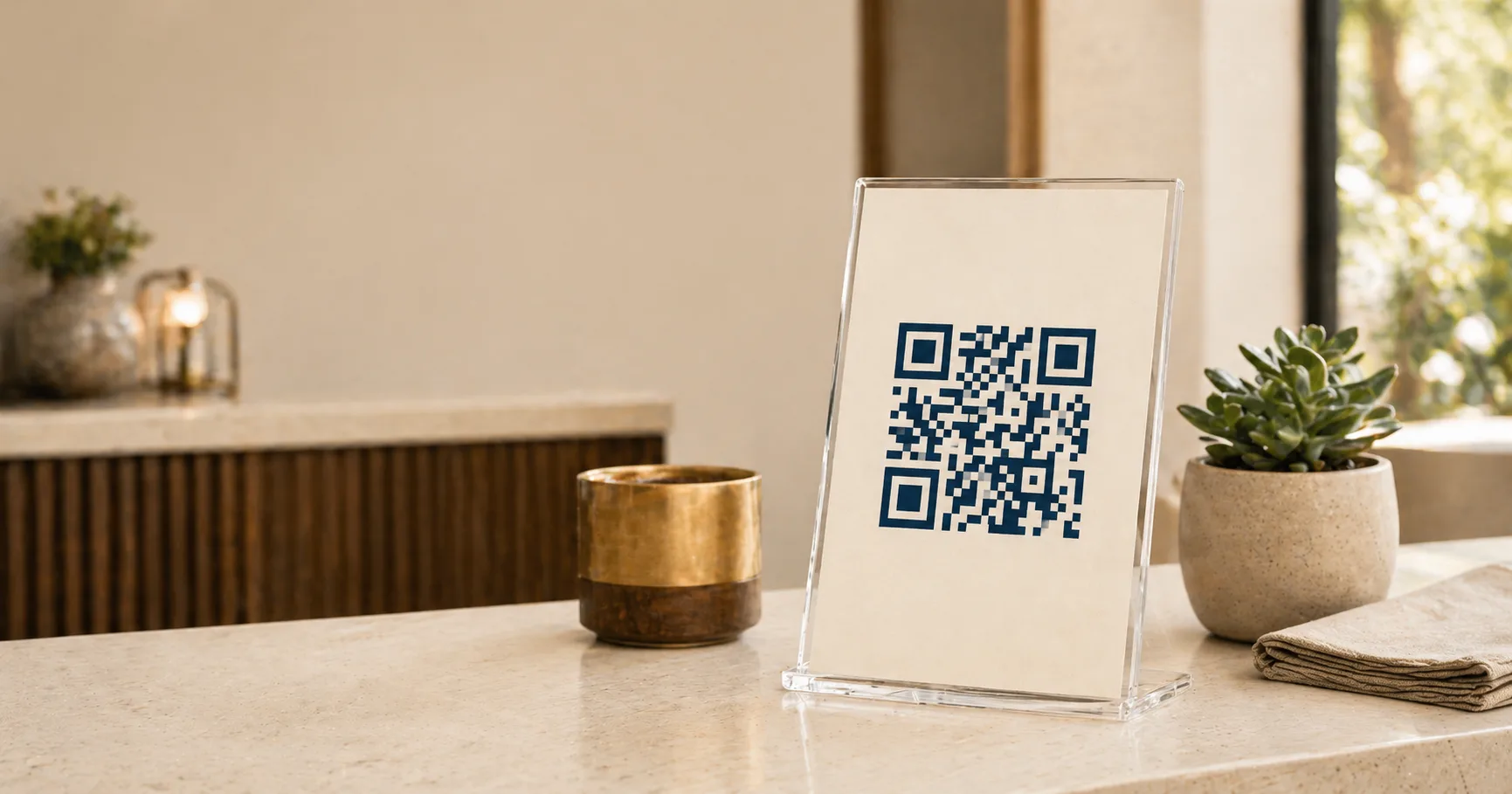
A Wi-Fi QR codeA QR encoding Wi-Fi credentials in the format `WIFI:T:WPA;S:NetworkName;P:password;;`. iOS and modern Android scan it from the camera and prompt to join the network without typing anything. Read more → lets a guest connect by pointing a camera at a sign instead of typing a password. It’s one of the highest-value QR use cases in hospitality, offices, and events because it removes friction at the exact moment a customer or visitor wants to be productive.
But Wi-Fi codes done badly are worse than no code at all. They confuse guests, expose internal networks, and create support work that staff have to absorb. This post covers what to standardize before you print signage, how to keep scans fast in real venues, and how to handle the security and rotation work that comes with guest networks.
Always start with a guest network, never your primary
Don’t encode your primary private network into a QR codeA 2D matrix barcode that encodes data in a square grid of black and white modulesA single black or white square in the QR grid. The number of modules per side scales with the QR versionThe size of a QR code, numbered 1 (21×21 modules) through 40 (177×177). Higher versions store more data but require more printed space. Read more →, from 21×21 modules for version 1 up to 177×177 for version 40. Read more →. Read more → that lives on a poster, table tent, or coffee-shop counter. Even if your private SSID is for staff only, the moment it’s printed on a sign, it’s effectively public. Anyone who walks past with a phone can grab the credentials.
Create a dedicated guest SSID first, then generate a Wi-Fi QR code for that network. This:
- Keeps internal devices, file shares, and printers isolated from guest traffic.
- Makes password rotation possible without disrupting staff.
- Lets you apply traffic shaping or content filtering to the guest network without affecting work tools.
- Gives you a clean compliance boundary if a guest does something inappropriate on your connection.
Most modern routers support multiple SSIDs natively. If yours doesn’t, treat that as a sign to upgrade before deploying signage.
Standardize SSID and credential policy
Before you print a single QR sign, decide on an operating standard your team will actually maintain. The standard doesn’t have to be elaborate, but it has to exist and be documented somewhere staff can find it.
What to lock down:
- Naming convention for guest SSIDs across locations (e.g.
BrandGuest-CityNameso guests can identify the right network in a crowded list). - Password complexity and rotation interval (passphrase length, rotation cadence, who generates the new password).
- Ownership for updates (which person or role refreshes printed signage when the password changes, and on what timeline).
- Incident response (what happens if you suspect the password leaked, what’s the trigger for an emergency rotation).
- Fallback sharing process when a scan fails (who tells a guest the password manually, and how).
A lightweight policy prevents support confusion when staff turns over or when multiple venues operate from the same playbook. Without it, you’ll find different locations with different naming schemes, no one knows when the password last rotated, and the QR code on the wall has been encoding an outdated credential for three months.
Keep scan friction low
For Wi-Fi codes specifically, scan speed matters more than aesthetics. A guest standing in a hotel lobby with bags wants the code to work in one second, not three. Every visual flourish that slows scanning costs you a small amount of trust.
What works in real venues:
Use high contrast between modules and background. Black on white is the safest default. If brand color is required, apply it to the foreground modules and keep the background near-white.
Leave a generous quiet zoneThe unprinted margin of at least four modules' width that must surround every QR code. Read more →. At least 4 modules of blank space on every side, which is usually 3-5 mm at typical print sizes. No frame elements inside that margin.
Print at a size that supports standing-distance scanning. A 10 cm code at standing height is the sweet spot for most lobbies and reception areas. For table-distance scanning at cafes or restaurants, 4-5 cm is usually enough.
Avoid placing codes behind reflective plastic frames. Acrylic stand-up signs and glass picture frames introduce glare that wrecks scanning under overhead lighting. If you need protection, use anti-glare matte film, or print directly onto a rigid substrate without a clear cover.
Avoid placement on glossy laminated surfaces that catch overhead light. Matte lamination scans much more reliably than gloss.
In practice, a code that scans in one second outperforms a visually fancier code that scans in three or four. Multiply that across hundreds of guest connections per day and the difference is the entire support load.
Add context next to the code
A QR code by itself confuses first-time users, especially older guests or international visitors who may not be familiar with Wi-Fi QR codes specifically. A short label removes the ambiguity:
Scan to join Guest Wi-Fi (no app needed)
If there are terms or time limits, place them directly below the code, not on a separate sign:
Free Wi-Fi for guests, 2-hour session limit.
A short fallback text line further reduces the support load:
If scan fails, ask the front desk for the password.
That single sentence cuts staff interruptions during peak periods. The point is to make sure a scan failure doesn’t turn into a stalled customer.
For multilingual venues, include the instruction in the languages your guests actually use. “Scan to join Wi-Fi” in two or three languages takes up almost no extra space and dramatically improves usability for international guests.
Plan for password rotation from day one
Guest credentials should rotate. The cadence depends on your context, but indefinite credentials are a liability waiting to happen. Decide before printing:
- How often passwords change. Monthly is common for hotels and busy offices. Quarterly works for low-traffic venues. Annual is acceptable only for genuinely low-risk environments.
- Who updates printed displays when the password changes, and on what timeline. The new password printed two weeks late is two weeks of an unscannable sign.
- Which locations get replacements first when a venue has multiple display points (lobby, meeting rooms, cafe, gym, pool).
- Whether digital displays make sense for any of those locations. A small digital sign that pulls the current password from a config file is much easier to update than a printed laminate.
If your rotation cadence is faster than your reprint cycle, you have an operational mismatch. Either rotate less often, or move to digital signage for the displays that change most.
Placement strategy by venue type
Different venue types have different physics. A pattern that works in a hotel lobby fails in a cafe.
Offices and coworking spaces
Place codes at the reception desk and at the entry point of each meeting room. Avoid making the only sign one that lives behind the security desk, where visitors can’t reach it without help. The coworking playbook covers reception flow and meeting-room signage. The hotel playbook covers similar logic for room and lobby placement.
Cafes, restaurants, and bars
Keep Wi-Fi prompts near ordering and table zones, but visually separate them from menu QR codes so guests don’t confuse the two. A common pattern: menu QR on the table tent, Wi-Fi QR on a small wall card near the counter. The cafe playbook covers this layout in detail, and the restaurant menu playbook covers menu codes specifically.
Events and temporary venues
Use multiple signs with consistent design language to avoid bottlenecks at entry lanes. One QR sign at the registration desk plus three or four smaller ones around the venue performs much better than one massive sign that everyone clusters around. The event check-in playbook covers placement and signage strategy in more depth.
Clinics and healthcare
In waiting rooms and reception areas, place the QR code at eye level for seated patients. The clinic playbook covers patient-facing signage with the additional sensitivity that healthcare contexts require.
Gyms and fitness studios
Place codes near the front desk and locker rooms. The gym playbook covers member-facing flows.
Test on multiple real devices before rollout
Always test with at least one iPhone and one Android device, ideally including a budget Android with a slower camera. Validate two things: that the code scans cleanly from the position guests will actually stand in, and that the connection successfully joins the network without prompting an error.
Some Wi-Fi QR formats trip up older Android versions or non-default camera apps. If you’re seeing inconsistent behavior, regenerate the code with our Wi-Fi QR generator and retest. The encoding format matters, and not all generators handle special characters in passwords correctly.
If one device fails repeatedly at the same position, the answer is usually one of: increase contrast, increase size, move the sign away from a glare source, or switch from gloss to matte finish.
Security and compliance
Offering guest Wi-Fi doesn’t remove your compliance responsibility. Depending on your jurisdiction and venue type, you may need to:
- Show terms of acceptable use before granting access (a captive portal handles this in most enterprise setups).
- Maintain network isolation between guest and internal traffic, verified by your IT or networking team.
- Keep connection logs and retention policies that match your local data protection requirements.
- Provide a clear privacy notice about what’s logged and for how long.
For venues where compliance is non-trivial (healthcare, finance, government adjacent), check with a privacy or legal advisor specific to your jurisdiction before printing the first sign. The QR code is the easy part; the policy underneath it is the work.
Generators and deeper guides
Generate the Wi-Fi code itself: Wi-Fi to PNG for general use, Wi-Fi to SVG for print and signage, or Wi-Fi to JPG when a specific platform requires it.
For deeper implementation structure, the guest Wi-Fi playbook covers the operational rollout in production-relevant detail. If your Wi-Fi flow is paired with table service, the restaurant menu playbook keeps both user journeys coherent. The Wi-Fi QR best practices guide goes deeper on the technical encoding format.
If guest Wi-Fi sits next to a QR menu in a restaurant or café, the restaurant QR menu playbook covers the joint rollout — the Wi-Fi prerequisite is the most common failure mode for menu adoption, and the two QR placements work better when they’re designed together.
Sources
- Wikipedia — QR code (Wi-Fi network login) — Standard format for Wi-Fi credentials encoded in a QR code (
WIFI:T:WPA;S:NetworkName;P:password;;). - ZXing — Barcode formats reference — Reference encoding format used by Wi-Fi QR codes, including escaping rules for special characters in passwords.
- ISO/IEC 18004:2015 — Print-quality requirements relevant to durable signage in lobbies, cafes, and event venues.