
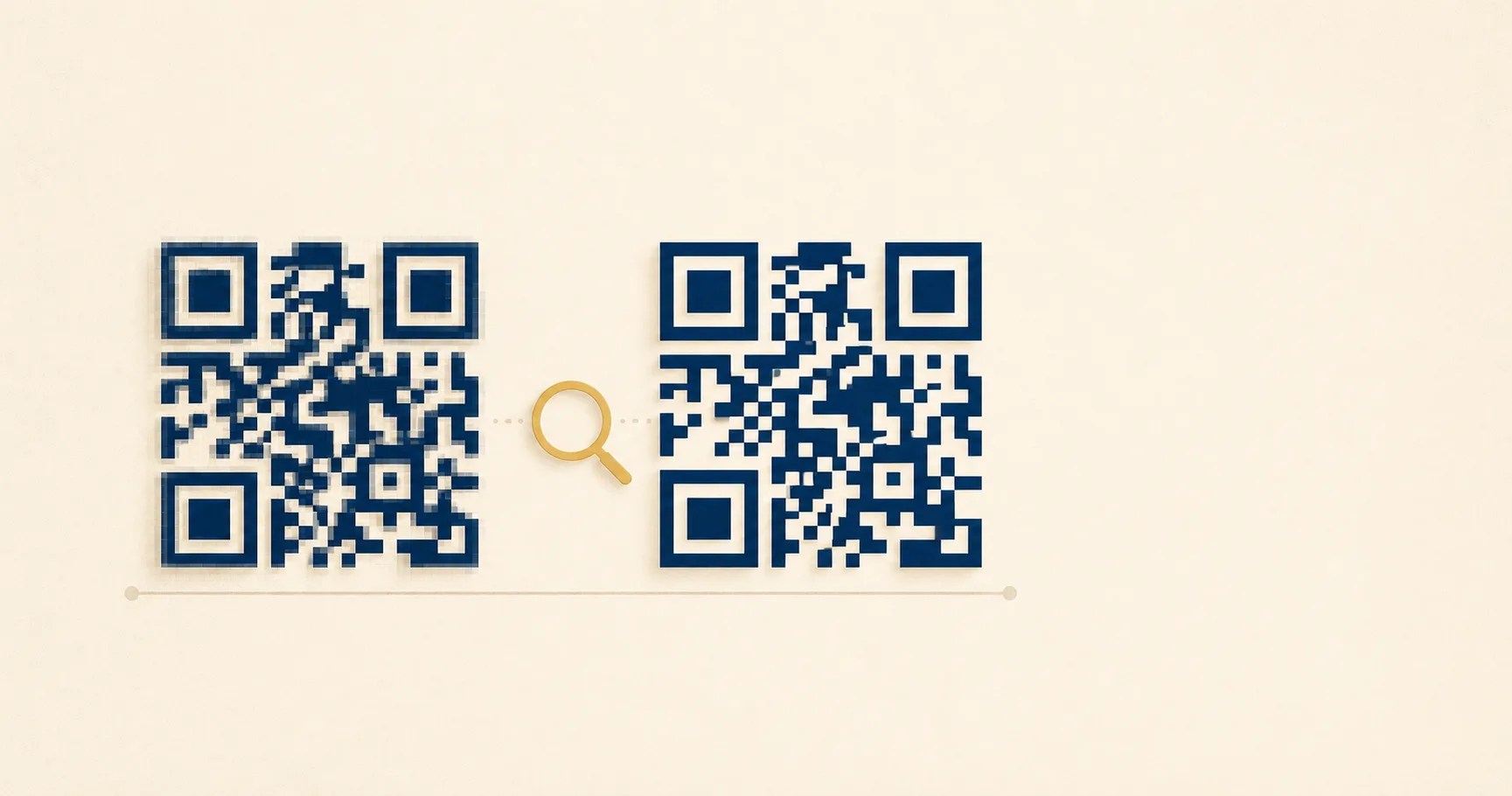
Generating a QR codeA 2D matrix barcode that encodes data in a square grid of black and white modulesA single black or white square in the QR grid. The number of modules per side scales with the QR versionThe size of a QR code, numbered 1 (21×21 modules) through 40 (177×177). Higher versions store more data but require more printed space. Read more →, from 21×21 modules for version 1 up to 177×177 for version 40. Read more →. Read more →, you are usually prompted to pick a file format. PNG and SVG produce visually identical codes but behave differently in production. PNG stores the image as a fixed grid of pixels. SVG stores it as geometry that the renderer redraws at any size. Use the wrong one and you get either pixelated print output or a vector file your design tool refuses to import. JPG appears in most export menus too and is almost always the wrong answer for codes, for reasons that come down to how lossy compression treats sharp edges.
This guide walks through where each format wins, where each one breaks, and how to decide quickly without overthinking the choice.
Quick verdict: which to use
Use SVG when:
- The QR code is going to print at any size.
- You want a single file that scales from a 20 mm business card to a 2 m exhibition banner.
- You will load the file into Figma, Adobe Illustrator, InDesign, or another vector design tool.
- Smaller file size matters and the rendering target supports SVG.
Use PNG when:
- The QR code is going on a webpage, social post, or email at a fixed display size.
- You need universal compatibility, including older browsers, email clients, and apps that quietly reject SVG.
- You want a single export that “just works” without explaining vector versus raster to anyone.
Use JPG when:
- Almost never. The single edge case is a system that refuses anything else, and even then you should push back. Lossy compression hurts scan reliabilityHow consistently a QR code scans across different devices, lighting conditions, distances, and orientations. Read more →.
The honest default for most users is PNG for screens and SVG for print. A QR code lives in two worlds — the camera that has to read it, and the design pipeline that has to embed it. Picking the format that matches the destination tool avoids the awkward “scale up the export and pray” moment.
Side-by-side comparison
| Dimension | PNG | SVG | JPG |
|---|---|---|---|
| File type | Raster, lossless | Vector, lossless | Raster, lossy |
| Scales without quality loss | Down only | Yes, infinitely | Down only |
| Typical file size for a QR | 5-30 KB at common sizes | 1-5 KB regardless of size | 5-50 KB, plus artifacts |
| Print-shop compatibility | Universal | Most accept it | Universal but risky |
| Web embedding | Universal | Universal in modern browsers | Universal |
| Design-tool support | Universal | Strong in vector tools | Universal |
| Email-client support | Reliable | Inconsistent | Reliable |
| Color editability after export | None without re-export | Can be restyled in code or a vector editor | None without re-export |
| Best at small print sizes | Good at high DPI | Excellent | Poor — artifacts hurt scans |
| Animation or hover effects | None | Possible via CSS or SMIL | None |
The two rows that drive most decisions are “scales without quality loss” and “email-client support.” SVG wins the first by definition. PNG wins the second because some major email clients (Outlook on Windows in particular) still treat inline SVG inconsistently. If you are putting a QR code in an email signature, ship a PNG.
Best choice by scenario
Posting a QR code on a marketing landing page. PNG. Pick a size that matches the design (300 to 600 px square is typical) and export at that resolution. Browser support is universal, file size is small, and you do not need vector scaling for a fixed display.
Sending a QR code in an email newsletter. PNG. Email clients render SVG unevenly, with Outlook on Windows being the consistent offender. PNG renders identically everywhere.
Designing a flyer in Figma or Adobe Illustrator. SVG. The design tool keeps the code crisp at any zoom level and scales correctly when the layout changes from A4 to A5. A raster file would lock you to one print size.
Printing on a business card at 20 mm square. SVG, with a 300-DPI PNG fallback for any print shop that asks for raster. Small print is where pixelation hurts most, and SVG sidesteps the issue.
Printing a QR code on a billboard or trade-show banner. SVG. The format is the only sensible answer when the print size dwarfs anything you would reasonably export as PNG.
Building a downloadable badge or embed code. PNG. Users will paste it wherever, and PNG is the format that survives the most second- and third-hand workflows without requiring vector knowledge.
Embedding the QR code in a printed book or magazine. SVG, with the publisher’s specified DPI for the PNG fallback. Print pipelines that mix raster photography and vector graphicsAn image made of mathematical paths — SVG, PDF, EPS. Scales infinitely without losing quality, and the file size is independent of the rendered dimensions. Read more → (which is most of them) handle SVG cleanly.
Generating QR codes programmatically and serving them at request time. Either, depending on the consumer. PNG is friendlier to non-technical users; SVG is friendlier to anyone embedding the response into a layout. Many tools, including the URL to PNG generator and the URL to SVG generator, let users pick at download time.
Failure modes for each
Where PNG breaks
Pixelation when scaled up. A 200x200 px PNG looks fine at 200 px display size. Stretch it to 800 px and each module turns into a fuzzy square. There is no way to recover sharp edges from a low-resolution raster export — the only fix is to re-export from the source generator at a larger size.
File-size growth at high resolution. Exporting a 4000x4000 px PNG to cover any future print scenario produces a file in the hundreds of kilobytes. SVG would have been a few kilobytes regardless of size.
Print-shop DPI mismatches. Exporting PNG at screen resolution (72 DPI) and sending it to a print shop that expects 300 DPI looks the same in a preview but prints visibly soft. The fix is exporting at the final print pixel count, which means knowing the print size in advance.
No editability. Changing the QR color from black to navy after export means re-rendering from the source. SVG would have been a one-line attribute change.
Where SVG breaks
Design-tool import quirks. Most vector tools handle SVG cleanly, but a small number of older or niche editors reject SVG QR codes outright or import them with grouping issues. The result is a vector image you cannot easily move, scale, or recolor as one unit. Re-exporting from the source generator with a different optimization profile usually fixes the issue.
Print workflows that require raster. A minority of print shops, particularly older quick-print operations and some on-demand merchandise platforms, will only accept raster files. Sending them an SVG triggers a request for PNG, which negates the workflow benefit. The pragmatic move is to export both formats up front for any print job.
Inline SVG in email. Mail clients diverge on inline SVG support. Outlook on Windows is the most consistent breaker; some webmail clients sanitize SVG attributes that the renderer relied on. A QR code that looked great in Gmail can render as a broken image icon in Outlook for the same recipient. PNG sidesteps this entirely.
Implicit reliance on the renderer. Two SVG files describing the same QR code can render slightly differently in two browsers if the SVG includes anti-aliasing hints or non-standard attributes. The differences are rare and almost never affect scannability, but they exist.
Where JPG breaks
Compression artifacts at module edges. JPG smooths color transitions, which is exactly what you do not want at the boundary between a black module and a white one. Even at a quality setting of 95, faint speckle appears around the edges. At common quality settings of 70-80, the artifacts compound and visibly soften the grid.
Reduced scan reliability under poor conditions. A JPG QR scans fine in good light at close range. Drop the lighting or pull the camera back, and the artifacts that the eye barely noticed start to confuse the decoder. The error correctionMathematical redundancy built into every QR code that lets it scan correctly even if part of the matrix is damaged, dirty, smudged, or covered (for example by a logo). Read more → in QR codes can compensate for some damage, but it should not have to fight the file format itself.
Background color shifts. JPG does not support transparency, and its compression can introduce a faint off-white tint to the supposedly pure-white background. The QR specification assumes a clear contrast between modules and the quiet zone. Sliding toward grey on either side reduces the contrast ratio that scanners rely on.
JPG exists in QR generators because the format selector is reused from generic image tools. Just pick PNG instead. There is no JPG-specific scenario where it wins.
How to implement either
Generate as PNG
Pick a target display size in pixels. Add roughly 10% on top to give yourself headroom. Export at that pixel size, with the highest quality setting. For print, multiply by 300 DPI at the final physical size: a 30 mm square print needs 30 / 25.4 * 300 = 354 px on a side, so export at least 400x400 px. Save the source generator settings so you can re-export later if the print size changes.
If your tool offers a “transparent background” toggle, leave it off for QR codes intended for print on coloured stock — without an explicit white background you can get the QR drawn directly onto whatever colour the page is, which collapses the contrast scanners need.
Generate as SVG
Open the QR in a vector editor or text editor. The file is small enough to read as plain text. The structure is usually a <svg> root with a single <path> describing all the dark modules. Paste it into Figma, Illustrator, or any design tool that accepts SVG. Resize freely. If you want to change the foreground colour, edit the fill attribute on the path. If you embed the SVG inline in HTML, the same colour swap can happen with CSS.
For development pipelines, server-rendered SVG QRs sit naturally inside React components and Astro pages without any image-loading step. The relevant browser specifications are referenced in the QR code design best practices and the size and print guidelines cover the printable thresholds. Both rest on the same core property: a QR code is a grid of squares, and any format that preserves sharp edges at the target size produces a scannable result.
Frequently asked questions
What about WebP or AVIF? Modern web image formats use lossy compression by default, similar to JPG, so they share the same module-edge problem. Lossless modes work in theory but compatibility is narrower than PNG. Stick with PNG for raster.
Can I convert a JPG QR code to PNG to fix it? No. The compression artifacts are baked into the JPG file. Re-exporting as PNG preserves them losslessly. Regenerate the QR from the source data instead.
Does the file format affect what URL or text the QR encodes? Not at all. The encoded payload is identical between formats — only the rendering changes. A 300-character URL produces the same module count in PNG, SVG, and JPG output from the same generator.
Should I always include both PNG and SVG when delivering a QR code to a client? It is the cheapest insurance available. Both files are small and cover every downstream workflow. Make the SVG the default and the PNG the backup.
Sources
- Wikipedia — Portable Network Graphics — Background on PNG’s lossless raster compression and color handling, the foundation of why PNG works well for QR codes at fixed sizes.
- Wikipedia — Scalable Vector Graphics — Background on SVG as an XML-based vector format, including browser support history and design-tool compatibility.
- Wikipedia — JPEG — Background on JPG’s lossy DCT compression, the reason its artifacts hurt sharp-edged content like QR codes.
- Denso Wave — About QR Code — Original QR specification background from the format’s inventor, useful context for why module contrast and quiet zoneThe unprinted margin of at least four modules' width that must surround every QR code. Read more → preservation matter regardless of file format.