
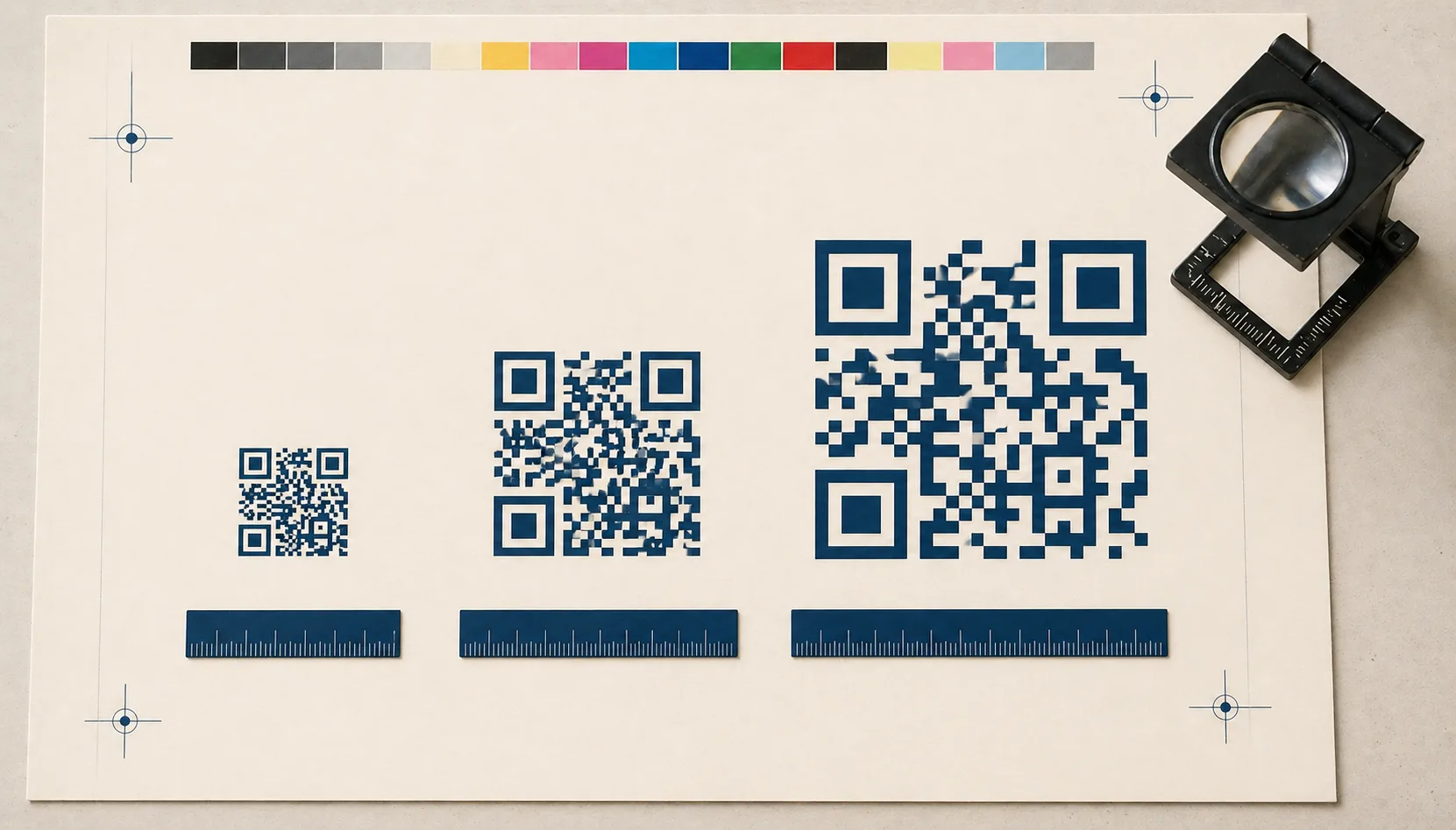
For a QR codeA 2D matrix barcode that encodes data in a square grid of black and white modulesA single black or white square in the QR grid. The number of modules per side scales with the QR versionThe size of a QR code, numbered 1 (21×21 modules) through 40 (177×177). Higher versions store more data but require more printed space. Read more →, from 21×21 modules for version 1 up to 177×177 for version 40. Read more →. Read more → on a handheld flyer or tabletop card, start at 25-30 mm square, including the white border. Treat this as a starting size to check on your actual print, not a guaranteed minimum. A longer link, a more distant viewer, or a reflective surface can require more room.
All sizes below include the blank margin around the pattern. This guide explains how to choose a starting size and check the finished result. It does not report an original phone-scanning study.
Choose a starting size for your placement
The distance at which someone will scan matters more than the paper size. A business card held in a hand and a poster across a room need different layouts.
| Placement | Starting point | What to check |
|---|---|---|
| Handheld flyer, business card, or tabletop card | 25-30 mm square including margin | Can a phone focus and detect it at the distance someone will hold it? |
| Counter sign or wall poster | Reserve more space as viewing distance increases | Test from the place the customer will actually stand. |
| Packaging | Leave room for the margin on a flat, unobstructed panel | Test on the finished package, including any coating or curve. |
These are layout suggestions, not measured scan thresholds. Avoid approving a size just because it worked on your screen.
If you need a first estimate for a sign, the common distance-divided-by-ten shortcut would suggest a 50 mm code for a 500 mm scan distance. That shortcut does not account for code density, phone cameras, or lighting. Use it to reserve space, then check the printed result.
Leave the correct white border
The blank border is called the quiet zoneThe unprinted margin of at least four modules' width that must surround every QR code. Read more →. Standard QR codes require at least four modules of clear space on every side. A module is one small square in the code’s grid. This requirement comes from Denso Wave’s code-area guidance, the company that developed the QR code.
Four modules is not a fixed number of millimetres. It depends on the grid and printed width. For example, a version 3 code has 29 modules across its pattern. With four modules of margin on each side, the complete square has 37 modules across. If that square is printed 30 mm wide:
- Each module is 30 / 37, about 0.81 mm wide.
- Each blank margin is four times that width, about 3.24 mm.
- The dark pattern itself is about 23.51 mm wide.
Keep text, frames, and backgrounds outside this margin. Cropping away the white border to fit a tight layout changes the code’s usable area.
Check code density before shrinking it
Two codes printed at the same width can have different-sized squares. The QR version and capacity tables explain how the amount and type of data, together with error correctionMathematical redundancy built into every QR code that lets it scan correctly even if part of the matrix is damaged, dirty, smudged, or covered (for example by a logo). Read more →, determine the grid size.
A long link with tracking parameters can need a larger grid than a short link. At the same printed width, that means smaller squares. Generate your final destination first, then choose the print size. Do not size a short sample link and replace it with a longer campaign link at the last minute.
If you shorten a destination, use a link you can maintain. A redirect adds a dependency on the redirect service staying available. The static versus dynamic guide explains that choice, and the error correction guide explains how correction settings affect the code.
Calculate PNG resolution at the final print size
For PNG, ask the printer what resolution they need. DPI means dots per inch. Convert your intended width to inches, then multiply by that resolution:
Pixel width = width in millimetres / 25.4 × DPI, rounded up.
| Total printed width | Pixels at 300 DPI | Pixels at 600 DPI |
|---|---|---|
| 20 mm | 237 | 473 |
| 25 mm | 296 | 591 |
| 30 mm | 355 | 709 |
| 50 mm | 591 | 1,182 |
These numbers calculate image resolution; they do not guarantee scanning. Avoid screenshots and repeated image compression. If the design tool and printer accept it, download an SVG so resizing does not depend on a fixed pixel count. Otherwise, export a PNG at sufficient resolution. Use JPG only when the receiving system requires it and check the exported result.
The PNG versus SVG guide covers file compatibility. Denso Wave’s module-size guidance explains why printer resolution and the scanner’s ability to resolve individual squares both matter.
Download an actual-size test sheet
Download the A4 QR print-size test sheet
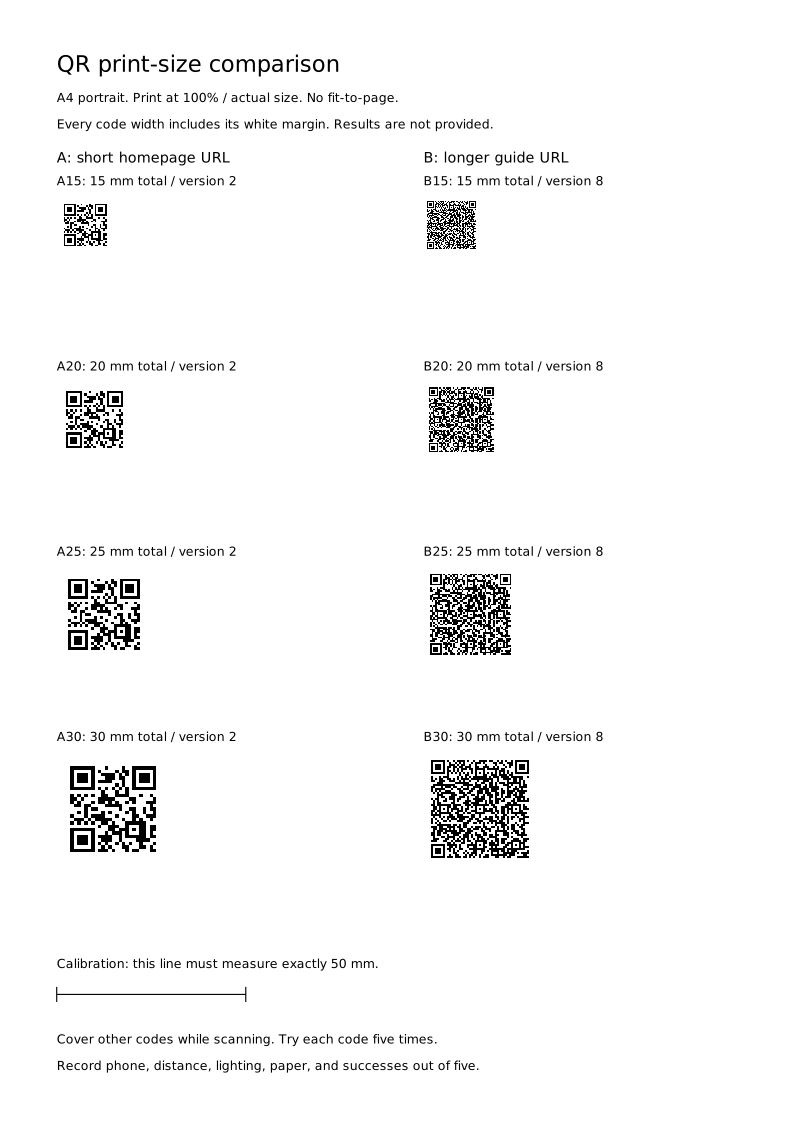
The sheet contains eight real codes: two destination lengths, each at 15, 20, 25, and 30 mm square including the margin. The small sizes are comparison cases, not recommended minimums. Both destinations point to Fast QR. You only need to check that the camera recognizes the correct destination; opening the website is a separate test of the network connection.
Open the downloaded SVG in a browser. In the print dialog, choose A4, portrait, 100% or actual size. Turn off headers and footers. Do not choose “fit to page”. Measure the 50 mm calibration line with a ruler. If it is not 50 mm, the print has been scaled and the labels no longer describe its physical sizes.
For each code:
- Start with the phone camera pointed away from the sheet.
- Hold it at the distance your reader would use, then aim at one code. Cover neighbouring codes so the camera cannot choose the wrong one.
- Allow up to five seconds for the correct link prompt to appear. Record whether it appeared, then point away before the next attempt.
- Repeat five times. Record the phone model, distance, lighting, paper, code label, and number of successful detections out of five.
- Repeat with any other phones available. A result from one phone applies only to that setup.
This sheet is a baseline comparison with plain black codes on white paper. It does not test your logo, destination, coloured stock, lamination, or finished layout. Repeat the check using your final exported code before a full print run. We have not published measured results from this sheet.
Check the finished design before approving it
Use dark modules on a light background, keep the margin clear, and place the code where a person can reach it with their camera. Test again after adding a logo or applying a coating. The design guide covers styling, and the retail packaging guide covers placement on products.
For the complete approval process, use the print-ready checklist. This page helps you choose and check physical dimensions; the checklist covers destination checks, final artwork, fallback links, and sign-off.
Sources
- Denso Wave: securing the code area. Four-module margins and an example of calculating the total area.
- Denso Wave: setting module size. Printer resolution, module dimensions, and scanner limitations.
- Denso Wave: QR code versions. Grid size and the relationship between capacity and error correction.
- GS1: barcode verification. Formal print-quality verification, which is different from the phone checks described here.