
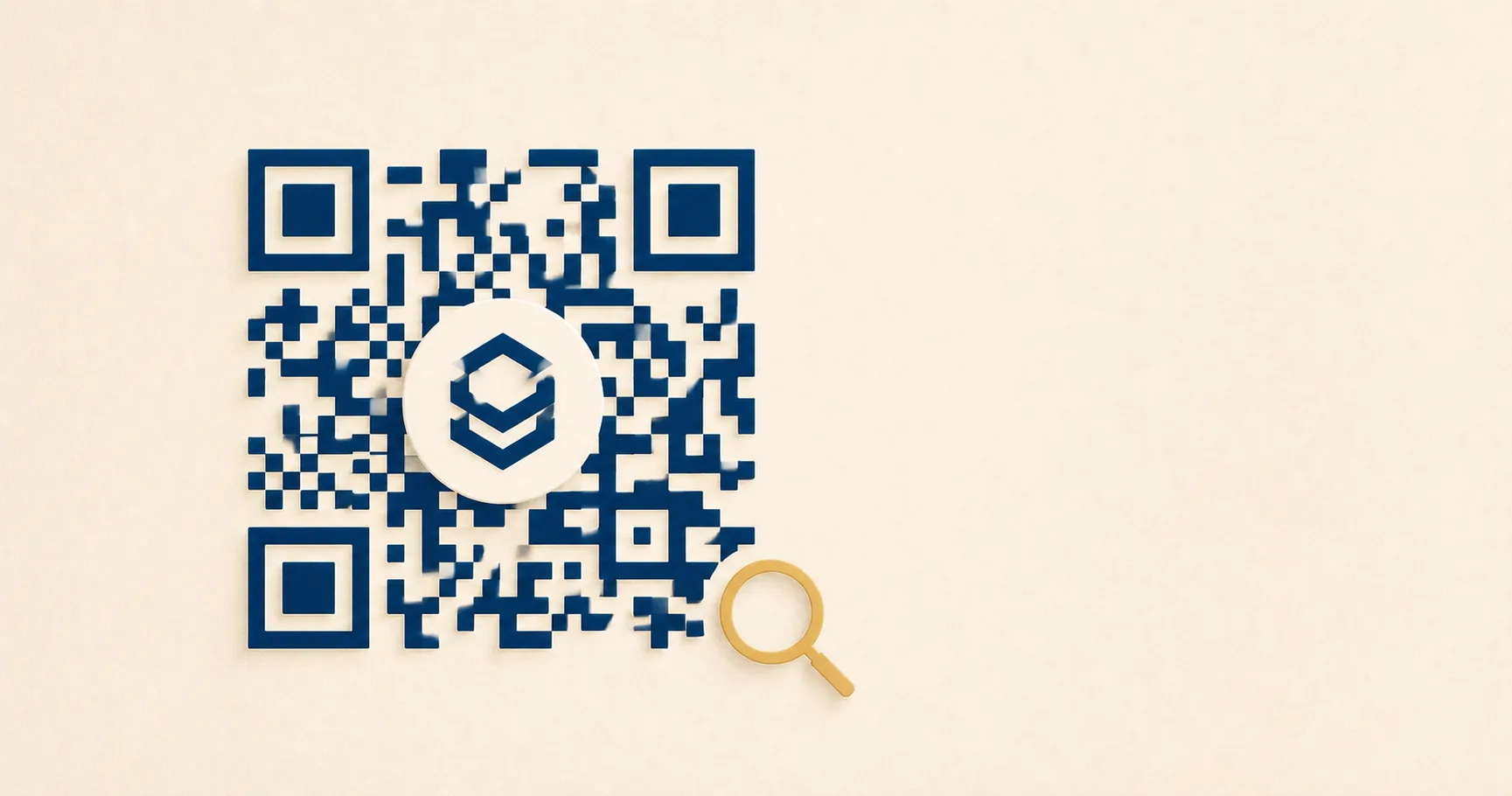
A QR codeA 2D matrix barcode that encodes data in a square grid of black and white modulesA single black or white square in the QR grid. The number of modules per side scales with the QR versionThe size of a QR code, numbered 1 (21×21 modules) through 40 (177×177). Higher versions store more data but require more printed space. Read more →, from 21×21 modules for version 1 up to 177×177 for version 40. Read more →. Read more → with a logo is a standard QR code that has a small graphic embedded near its center, made readable by the QR specification’s built-in error correctionMathematical redundancy built into every QR code that lets it scan correctly even if part of the matrix is damaged, dirty, smudged, or covered (for example by a logo). Read more →. The question behind almost every “QR code with logo” search is the same: how much branding can I put on this thing before it stops working. Adding a wordmark or icon to a QR code is the single most-requested customization, and it succeeds far more often than people expect. It also fails in predictable ways when designers push too far, place the logo wrong, or skip a real-world test pass.
This guide walks through what makes a logo’d QR code reliable, how big the logo can be, where to put it, what artwork holds up, and the failure modes that turn a beautiful proof into a useless print run. Everything here assumes you want a QR code that scans on a five-year-old budget Android in dim restaurant lighting, not just on your designer’s iPhone.
How error correction makes logos possible
A QR code is not a brittle pixel grid. It is a self-healing data structure built on top of Reed-Solomon error correction, the same coding family that protects data on CDs, DVDs, and deep-space transmissions. Each QR generator weaves redundancy bytes into the modules so that scanners can rebuild the payload even when chunks of the pattern are missing or covered.
That redundancy is what lets a logo sit on top of data modules at all. The logo is functionally a smudge from the scanner’s perspective: data is missing from that region, and the decoder reconstructs it from parity bytes elsewhere in the code. The QR specification defines four error correction levels, with the highest one tolerating roughly 30% of codewordsAn 8-bit unit of data inside a QR code. Each version + ECLOne of four settings that controls how much damage a QR code can tolerate: L (about 7%), M (15%), Q (25%), or H (30%). Read more → combination has a fixed total split between data codewords (your payload) and error-correction codewords (the redundancy). Read more → being lost. Denso Wave, the inventor of the QR code, summarizes this on its error correction overview. The math behind it is the Reed-Solomon code, covered in detail on the Wikipedia QR code page.
For a centered logo to work, error correction has to be set to H. Levels L, M, and Q simply do not have enough redundancy once you obscure even a small chunk of the data area. The full mechanics, including the trade-off where higher correction means denser codes, sit in the error correction guide.
How big can a logo actually be?
The widely repeated rule is that level H tolerates 30% loss. The widely ignored caveat is that the 30% includes everything: print imperfections, scratches, bad lighting, glare, the logo, and any other obstruction. If you put a 30% logo on the code and then the print run has a slight smudge, you are out of recoverable headroom and the scan fails.
In practice, plan for the logo to occupy 20-25% of the total QR code area. That gives the error correction roughly five to ten percent of headroom for everything else that goes wrong between the design file and a real phone camera. Measure against the full module grid, not against the printed bounding box plus margin.
A concrete example. On a 5 cm by 5 cm QR code, the total module area is 25 square centimeters. A 25% logo can occupy roughly 6.25 square centimeters, which works out to a square logo of about 2.5 cm on each side. Most wordmarks and icon-style logos look balanced at well under that maximum. If the logo plate, meaning the white shape behind the artwork, is bigger than the logo itself, count the plate, not just the visible artwork.
If your printed code will be smaller than 3 cm, drop the logo size proportionally and consider whether the brand mark adds enough value to justify the reliability cost. The size and print guidelines cover the math by use case.
What kind of logo works best
Not every logo is equally suited to embedding. The shapes and contrast that work well in a corporate header do not always survive being dropped into a module grid.
Solid shapes outperform thin lines. A monogram with bold strokes, a filled circle holding a letter, or a chunky wordmark all give scanners a clean boundary. Logos with delicate strokes, fine serif type, or hairline outlines tend to blur into the surrounding modules, especially at small print sizes or after JPG compression.
High-contrast wordmarks beat low-contrast badges. A dark logo on a clean white plate inside a black-on-white code reads instantly. A light gray icon on a textured beige plate inside the same code introduces ambiguity at every edge. The same luminance rules apply if you push the modules themselves to a brand colour — see the colored QR code guide for the contrast math and inversion limits.
The logo plate trick is worth the extra five minutes. Most reliable logo placements use a small white circle or rounded rectangle behind the artwork, with five to eight pixels of padding around the logo itself. The plate gives the decoder a sharp light region instead of asking it to interpret module-on-logo transitions. It also visually separates the logo from the QR pattern, which makes the whole thing look intentional rather than glitchy.
Avoid full-color photographic logos inside the code. They almost always introduce mid-tone noise that scanners interpret as ambiguous module data. If the brand mark must be a photograph, reduce it to a single high-contrast silhouette before placing it.
Where should the logo go?
Center is the safe placement, and almost every logo’d QR code in production uses it. The reasons are mechanical, not aesthetic.
The three large nested squares in the corners are finder patternsThe three large squares in the corners (top-left, top-right, bottom-left) of every QR code. Scanners use them to detect a QR in the camera frame, lock onto it, and determine its orientation. Read more →. A scanner uses them to detect the code, decide which way is up, and estimate the spacing of the module grid. Damaging any one of them breaks scanning before error correction even runs. The asymmetric three-corner layout is what tells the decoder the code is not upside down.
Larger QR codes also include alignment patternsSmaller square patterns scattered through QR codes from version 2 onward. They help scanners correct for perspective distortion when the code is photographed at an angle, on curved surfaces, or with a wide-angle lens. Read more →: smaller nested squares used to correct for perspective and curvature. Like finder patterns, they are off-limits. A logo placed in the bottom-right quadrant of a Version 5 code will often clip an alignment pattern and break decoding even though the data area looks fine on screen.
The geometric center of the code, by contrast, is data and error-correction modules with predictable redundancy. Centering keeps the logo away from the special patterns and concentrates the data loss in a region the error correction was designed to recover. The QR anatomy section walks through what each pattern does in plain terms.
Off-center placements are not impossible, but they require manually checking that the logo sits clear of finder patterns, alignment patterns, and the thin row of timing modules between the corners. If you want anything other than dead center, you are signing up for code-by-code QA.
Common failure modes
Most failed logo’d QR codes share a small set of root causes. The pattern repeats often enough that it is worth memorizing.
A too-large logo is the most frequent. Designers measure the logo at 20% in the design file, then add a generous white plate behind it, and the combined obstruction is closer to 35% by the time it prints. Always measure the plate, not just the artwork.
Intricate logos with thin strokes are the second most common. A delicate script logo or a logo with hairline borders tends to blur into the surrounding modules under any imperfect print, and decoders cannot lock onto the boundary. Solid silhouettes are far more forgiving.
Logos placed over a finder pattern fail catastrophically. The code does not even register as a QR code in many camera apps, because the asymmetric three-corner detection fails. This usually happens when a designer manually moves the logo “for visual balance” and clips a corner without realizing what those corner squares do.
Low-contrast logos on busy QR backgrounds blur the boundary even when sizes are reasonable. A pale gold icon on a dark navy code looks elegant in the mockup and loses three out of ten scans on real phones. A high-contrast monochrome silhouette works better than a brand-colored one nearly every time.
Finally, error correction set below H combined with any logo at all is a slow-motion failure. The code might scan when freshly printed in a controlled studio. It will not survive a fingerprint, a scratched menu sleeve, or a poorly-lit room. Always pair logos with H.
Testing a logo’d QR before you ship
A logo’d QR code passes when it scans instantly on the worst combination of phone, lighting, and print quality your customers will encounter. Anything less than that is a guess.
Build a simple test protocol and run it before any large print run.
- Print the final design at the actual size you plan to ship. A monitor preview at 200% zoom is not a substitute, because the camera does not see the same thing your eye does on a 27-inch display.
- Test on at least three phones: one current iPhone, one current mid-range Android, and one older Android (four to five years old). Older budget Android cameras are the floor for real-world reliability. If they fail, your most price-sensitive customers fail too.
- Vary the lighting. Overhead glare, dim restaurant light, sunlight through a window, and a fluorescent office. Each one stresses the camera differently.
- Vary the distance and angle. A table tent gets scanned from 30 cm. A wall poster gets scanned from one to two meters. A package label gets scanned at whatever angle the customer happens to be holding it.
- Test the final substrate. A glossy menu sleeve, a matte vinyl sticker, and a printed business card all interact with light differently. Lamination especially can introduce reflections that change scan behavior.
If any device misses the scan more than once in five attempts, the design is not ready. Either reduce the logo size, increase the printed size of the code, or shorten the URL to lower the QR version (and therefore enlarge each module). The design best practices guide covers broader pre-print checks beyond logos.
When to skip the logo
Sometimes the right call is to ship the QR code without a logo. The brand mark belongs nearby, on the same card or sign, but not embedded inside the code itself.
Skip the logo when print sizes are very small. A QR code on a 3.5 cm by 5 cm business card has so few square millimeters that any logo eats meaningful module space. A nearby brand wordmark on the card itself works better than an embedded one inside a code that already has tight tolerances. The business cards playbook walks through this trade-off in context.
Skip the logo when the URL is long. Tracking parameters, UTM codes, and session IDs balloon a payload, which forces the encoder to use a higher QR version with smaller modules. At higher versions, the same physical print size leaves each module barely visible, and any obstruction at all degrades scans noticeably. Either drop the logo or shorten the URL via a redirect on a domain you own.
Skip the logo when the color scheme is already inverted or borderline. A light-on-dark QR code is already pushing decoder assumptions, since most camera apps assume dark modules on a light background. Stacking a logo on top of an inverted code compounds the risk. Keep one challenging customization at a time.
Skip the logo on packaging that lives in rough conditions. Outdoor labels, freezer goods, and warehouse stickers experience scratches, fading, and condensation. Reserve every point of error-correction headroom for those insults rather than spending it on branding. The QR statistics roundup shows how scan reliabilityHow consistently a QR code scans across different devices, lighting conditions, distances, and orientations. Read more → translates directly to engagement.
When you do ship a logo’d code, export it in a format that preserves edges. Use the URL to SVG generator for print and signage, and the URL to PNG generator for digital and quick sharing. The vector path keeps both the modules and the logo crisp at any size.
For the broader set of brand-customization decisions that surround logo placement — module shapes, frame designs, eye styling, color palettes, and when each customization is safe — see QR code design principles.
Sources
- Denso Wave — Error correction feature — Inventor’s overview of the four QR error correction levels and their recovery percentages.
- Wikipedia — QR code (Error correction) — Reed-Solomon redundancy, level definitions, and how scanners reconstruct lost modules.
- ISO/IEC 18004:2015 — The international standard that formally defines QR code structure, including the patterns logos must avoid.